
AI neural network

The Artificial

Proof

Real results from real deployments — see what The Claw Father can do.
Proven in Production
Case Study: Automated M365 Support

How we replaced 1st-line support
with a narrow AI agent

A deep dive into The Claw Father's intelligent ticket system — from email to resolution, with full human oversight and zero manual M365 operations.

The Claw Father — AI ticket processing workflow
60+
M365 skills available
100%
Human-approved actions
10,000+
Apps deployable via Intune
<2min
Analysis to action plan
Real Results

Tickets resolved by AI

Every ticket is analyzed, planned, approved, and executed through The Claw Father — with a human in the loop at every step. New solutions are promoted to the skill library automatically, so the system gets smarter with every ticket it resolves.
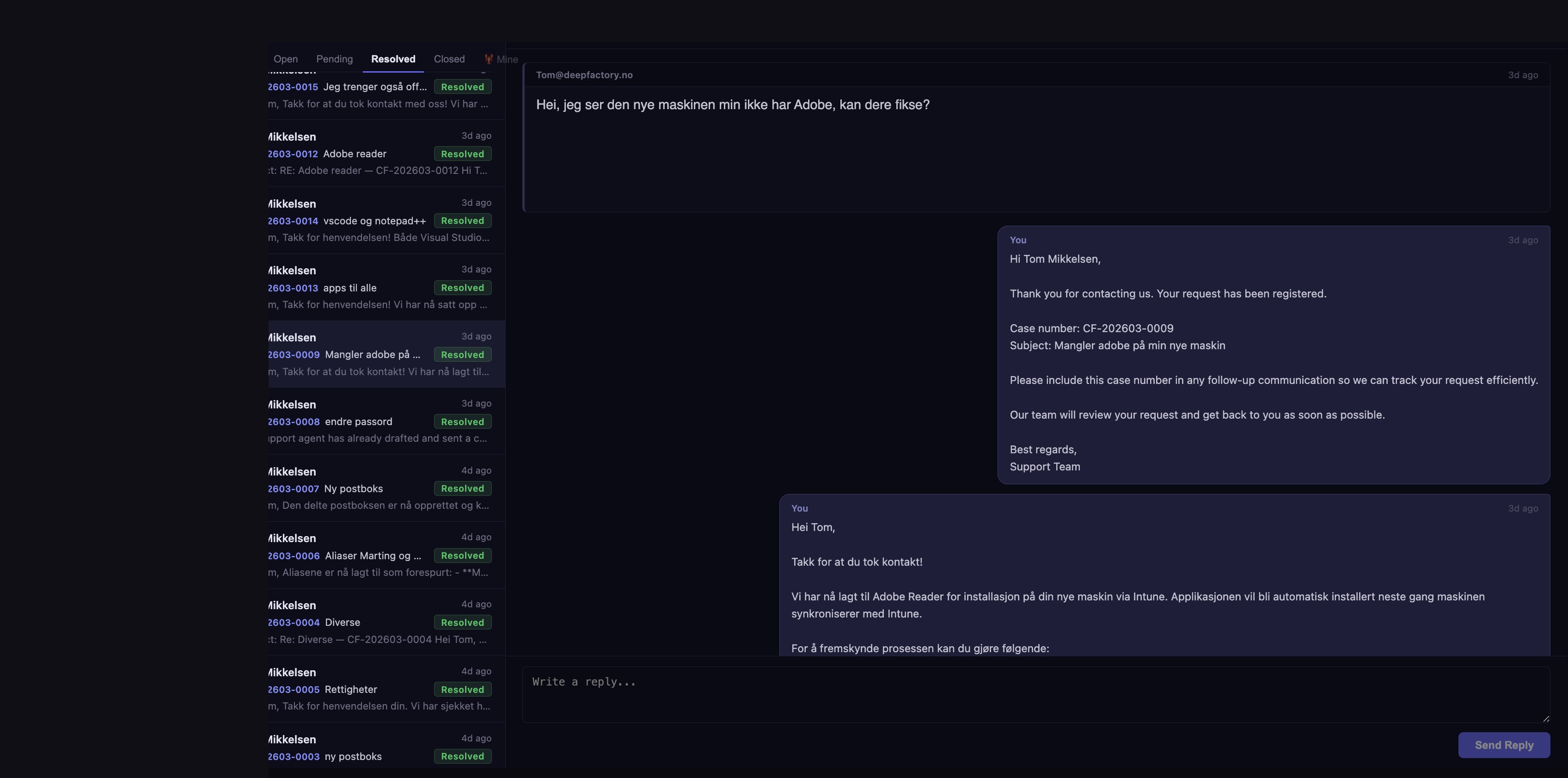
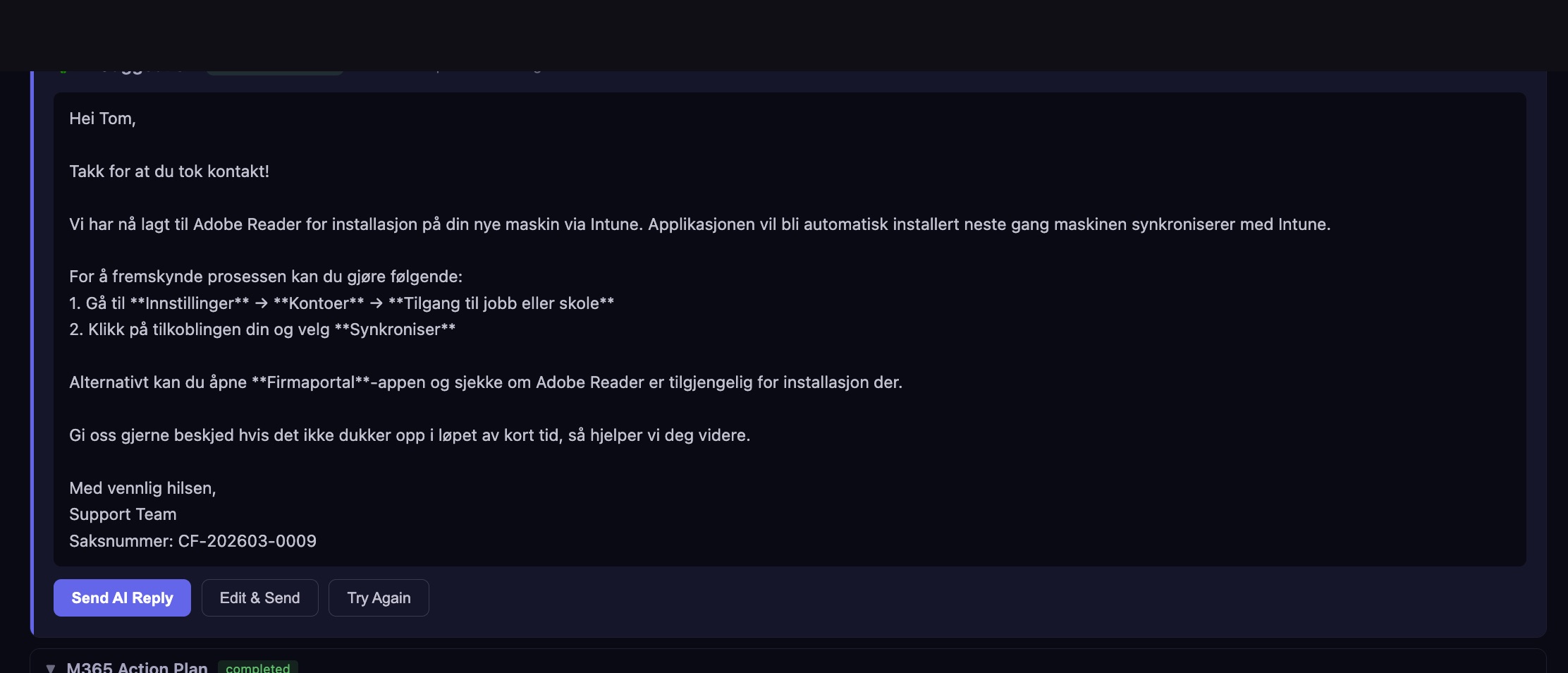
Ticket list
Resolved ticket list — all cases handled by AI
AI Reply
AI-generated reply — sent to customer after execution
M365 Action Plan
M365 Action Plan — completed steps with Graph API calls
Click to cycle — 1 / 3
How it works
  1. 01
    Ticket arrives

    A support request lands in The Claw Father's queue — by email or from the support portal. The agent reads and understands the full request in context.

  2. 02
    Plan generated

    The AI produces a step-by-step M365 action plan — which APIs to call, what to create, who to notify — before touching anything.

  3. 03
    Human approves

    The plan is presented for review. No action is taken without explicit approval. You stay in control at every step.

  4. 04
    Agent executes

    Graph API calls are fired in sequence. Users created, licenses assigned, groups updated, mailboxes configured — all logged in real time.

  5. 05
    Ticket closed

    A summary reply is sent to the customer and the ticket is marked resolved. Full audit trail retained.

  6. 06
    System learns

    When a new action succeeds, it's automatically promoted to the skill library — no human intervention needed. The system is self-improving: every resolved ticket makes the next one faster and more reliable. Started with 60 skills and growing.

CF-202604-0001 Resolved
New User Onboarding
Created user tore@deepfactory.no → Assigned M365 Business Premium license → Added to 3 Intune app groups (Adobe Reader, M365 Apps, Notepad++)
CF-202603-0007 Resolved
New Shared Mailbox
Created shared mailbox via Exchange → Assigned FullAccess + SendAs permissions → Configured auto-mapping for users
CF-202603-0008 Resolved
Password Reset
Reset user password → Generated secure temporary password → Sent credentials securely to requester
CF-202603-0014 Resolved
Install VS Code + Notepad++
Deployed VS Code via Intune/Chocolatey → Deployed Notepad++ → Assigned to user's security group → Auto-install on next sync
CF-202603-0013 Resolved
Deploy Apps to All Users
Created Intune app packages → Assigned as required apps to target security groups → Verified deployment status
CF-202603-0012 Resolved
Adobe Reader Installation
Checked existing Intune apps → Created Chocolatey deployment → Added user to Intune security group → Auto-installed via device sync
CF-202603-0009 Resolved
Missing Adobe on Device
Identified missing Intune assignment → Added user to existing Adobe security group → Triggered device sync for immediate install
CF-202603-0006 Resolved
Email Alias Configuration
Added email aliases to user accounts → Updated proxy addresses via Graph API → Verified alias routing
CF-202603-0015 Resolved
Additional Software Request
Analyzed request → Matched to Chocolatey packages → Deployed via Intune → Assigned to user security group
Full M365 Coverage

What the agent can do

A narrow AI agent with deep M365 expertise — powered by Graph API, Exchange Online, and Intune with 10,000+ Chocolatey packages.

👤
User Management
Create, update, disable users. Reset passwords. Manage UPNs and profile data. Full lifecycle management.
🪢
License Management
Assign and unassign M365 licenses. Detect most used SKUs. Optimize license allocation across tenants.
👥
Groups & Teams
Create security groups, distribution lists, M365 groups. Add/remove members. Manage group-based access.
📬
Exchange Online
Create shared mailboxes. Set permissions (FullAccess, SendAs). Configure auto-replies and mail flow rules.
📱
Intune & App Deployment
Deploy any of 10,000+ Chocolatey apps via Intune. Assign to groups. Auto-install on managed devices.
🛡️
Security & Compliance
Conditional access policies. MFA enforcement. Full action audit trail with compliance logging.
Day Zero Automation

Onboarding — done before day one

Whether you're provisioning a new employee or deploying a new AI agent — The Claw Father handles the entire setup chain automatically, from Azure AD identity to Cloud PC to apps.
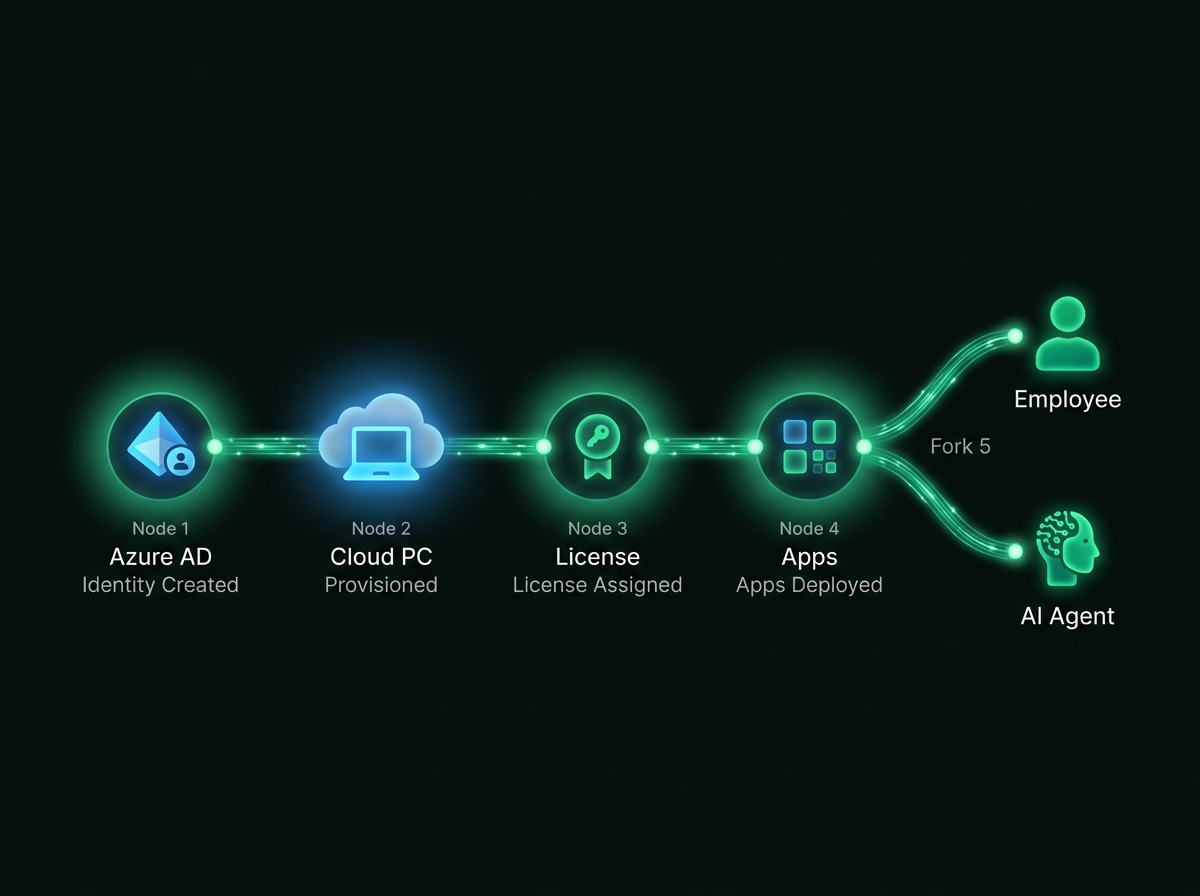
Automated onboarding flow
How it works
  1. 01
    Request triggered

    HR submits a new hire form, or an AI agent creation is initiated in The Claw Father. One action kicks off the entire chain.

  2. 02
    Identity created

    Azure AD account created, UPN assigned, password policy applied, and placed in the correct security groups for role-based access.

  3. 03
    Cloud PC provisioned

    A Windows 365 Cloud PC is spun up in Azure — region selected, Intune policy applied, device enrolled and ready before the person arrives.

  4. 04
    Licenses & apps assigned

    M365 Business Premium, Cloud PC license, and all role-specific app groups assigned in one pass. Software installs automatically on first login via Intune.

  5. 05
    Agent variant

    For AI agents: NemoClaw sandbox container provisioned, skills installed, Tailscale VPN configured, and the agent activated — same pipeline, different endpoint.

PROV-202604-0001 Completed
New Employee — Kenneth Børø
Azure AD account created → Cloud PC provisioned (Norway East) → M365 Business Premium assigned → 6 Intune app groups configured → Welcome email sent
PROV-202604-0002 Completed
AI Agent — sales-agent-01
NemoClaw container provisioned → CRM + Tripletex skills installed → Tailscale VPN configured → Skills verified → Agent activated
PROV-202604-0003 Completed
AI Agent — support-agent-02
NemoClaw container provisioned → M365 Graph API skill installed → Ticket queue access configured → NemoClaw network policy applied → Activated
PROV-202604-0004 Completed
New Employee — Consultant Onboard
Limited-access Azure AD account → Cloud PC with restricted policy → Teams-only license assigned → Access reviewed and approved before activation
Financial Automation

ERP sync — zero manual entry

The Claw Father keeps Tripletex and the CRM in perfect sync — customers, contacts, and financials flow automatically in both directions, triggered at the moment of creation.

How it works
  1. 01
    Customer created in CRM

    One-click creation with Brreg registry lookup — company name, org number, address, and sector populated automatically. No typing.

  2. 02
    Tripletex record auto-created

    The moment the CRM customer is saved, a matching customer record is created in Tripletex — synchronized, linked, and ready for invoicing.

  3. 03
    Bidirectional sync

    Changes made in Tripletex flow back into the CRM. No duplicate entry, no missed updates, no reconciliation work.

  4. 04
    Contact sync to Exchange

    Contacts are automatically pushed to the Exchange Online address book — accessible in Outlook, Teams, and on mobile without any manual steps.

  5. 05
    Full picture in one place

    Tasks, tickets, projects, invoices, and signed documents all linked to the same customer record — nothing lives in isolation.
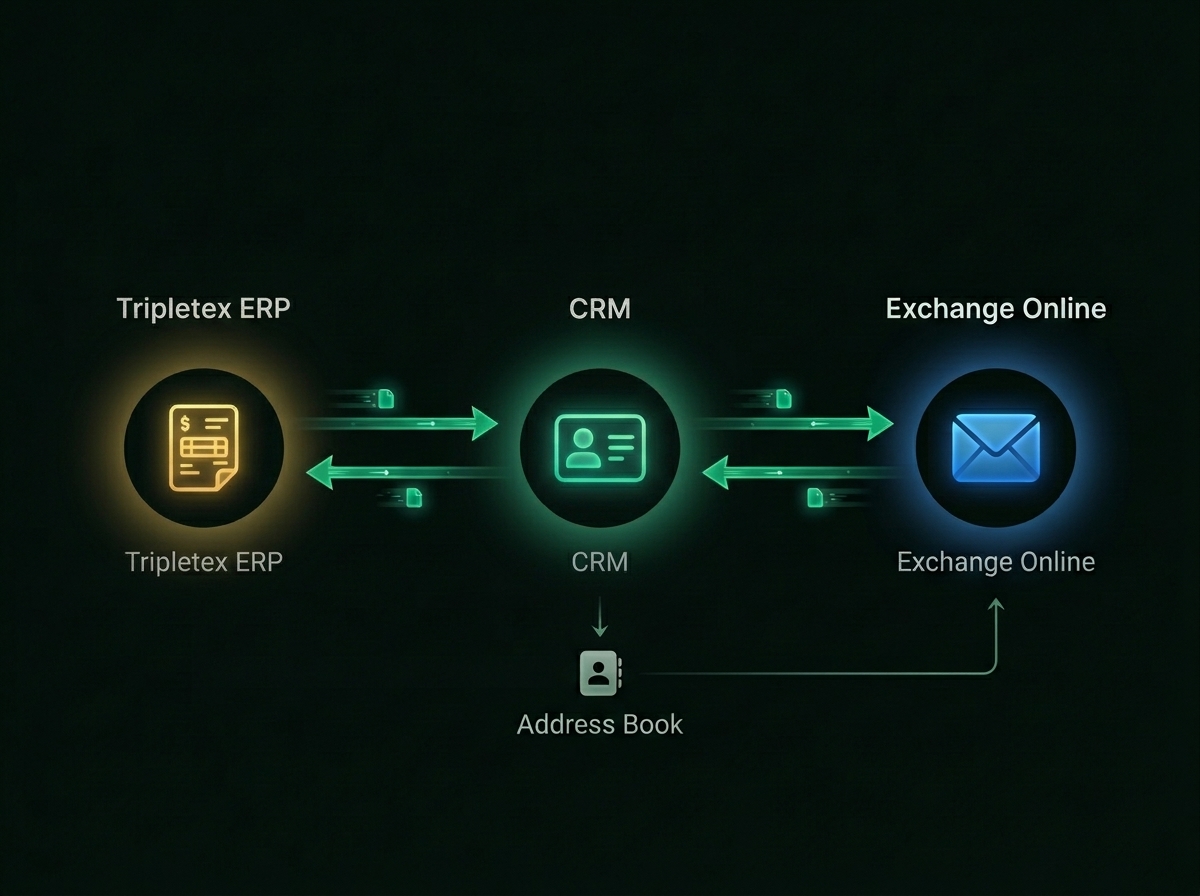
Bidirectional CRM Tripletex sync
SYNC-202604-0001 Synced
New Customer — DeepFactory AS
Brreg lookup completed → CRM record created → Tripletex customer auto-created → Contacts synced to Exchange addressbook
SYNC-202604-0002 Synced
Contact Update — Tripletex → CRM
Phone number updated in Tripletex → CRM contact record updated automatically → Exchange addressbook refreshed within minutes
SYNC-202604-0003 Synced
Invoice Linked to CRM Customer
Invoice created in Tripletex → Linked to CRM customer profile → Visible in activity timeline → No manual cross-referencing needed
Paperless by Default

Agreements — signed in minutes

Contracts, NDAs, and service agreements sent, tracked, and signed digitally — fully integrated with CRM and customer records. No printing, no scanning, no chasing.
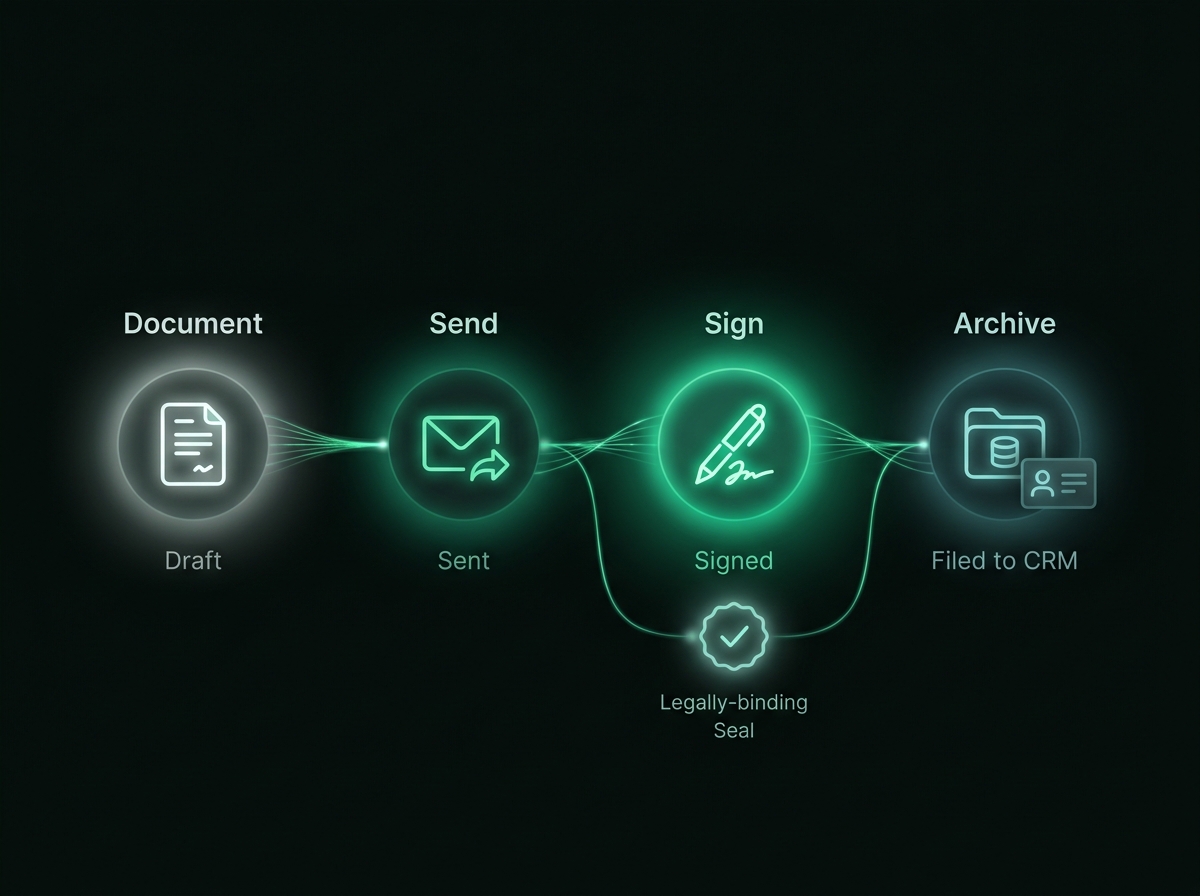
Digital e-signing flow
How it works
  1. 01
    Document prepared

    Contract or agreement drafted inside The Claw Father — directly linked to the relevant CRM customer and project from the start.

  2. 02
    Sent for signing

    The recipient receives a signing request by email. No account required — they click, review, and sign directly in the browser.

  3. 03
    Signed digitally

    BankID or email-based signing — legally binding, timestamped, and tamper-proof. All parties receive a copy automatically.

  4. 04
    Auto-filed to CRM

    The signed document is attached to the customer profile in the CRM — searchable, accessible, and part of the full activity timeline.

SIGN-202604-0001 Signed
Service Agreement — DeepFactory AS
Agreement drafted → Sent to customer → Signed via BankID within 4 hours → Auto-archived to CRM customer profile
SIGN-202604-0002 Signed
NDA — Partner Onboarding
NDA template selected → Populated with CRM contact data → Sent → Both parties signed same day → Linked to partner project
SIGN-202604-0003 Signed
Employment Contract — New Hire
Contract generated with onboarding data → Sent day before start → Signed electronically → Filed to HR record in CRM